PRODUCT UPDATE / 2D art · Sprite lighting
Ludo.ai adds frame-aligned normal maps to sprite sheets
The November 6 update can export a normal map alongside the sprite sheet and frame data, so 2D characters can react to lights as they animate. A map adds 0.5 credits per sprite sheet.
Export the sprite sheet and normal map together so a lit sprite can sample the corresponding part of each texture as the animation advances.
Ludo.ai added normal maps to sprite sheets on November 6. The extra texture records the surface direction of each pixel across the animation, in the same layout as the sprite sheet. With a lit sprite material, a moving torch or spell can change the shading on a 2D character as it animates. In Ludo.ai, you can open the preview from an asset’s normal map thumbnail and move the pointer to test the light before exporting.
Add a normal map when making the sheet
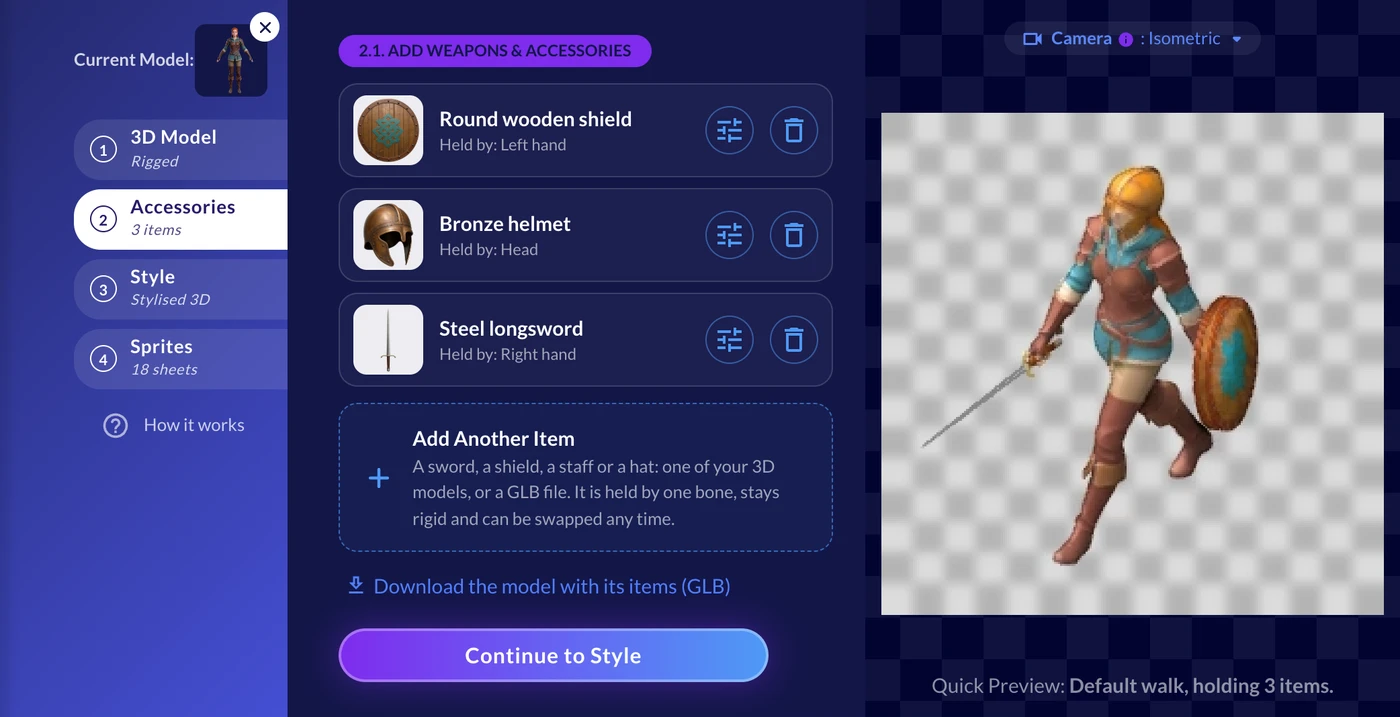
Enable Normal Map under Sprite Sheet Options when you generate or edit an animation. For an existing sprite, choose Generate Normal Map from its actions and apply the settings. Ludo.ai cuts a new sheet from the animation, so you can also change the frame count or size in the same step.
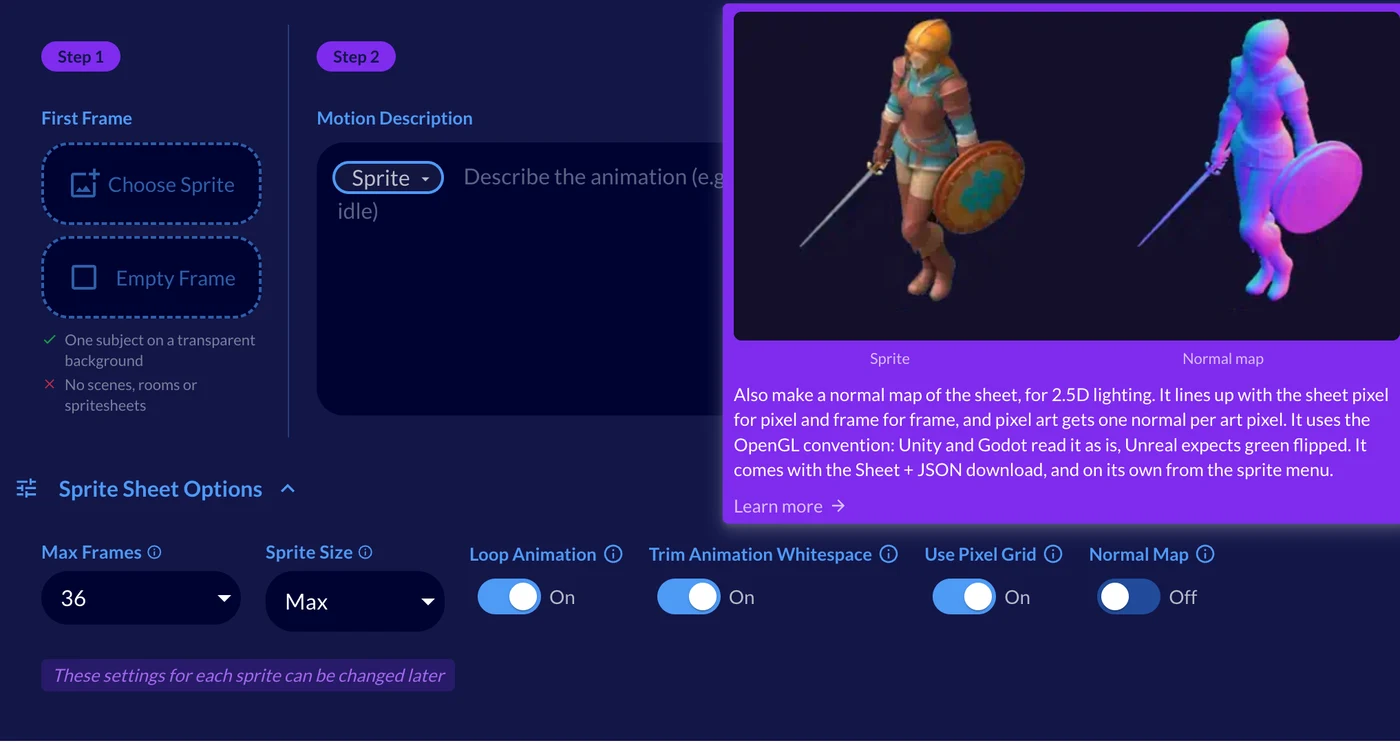
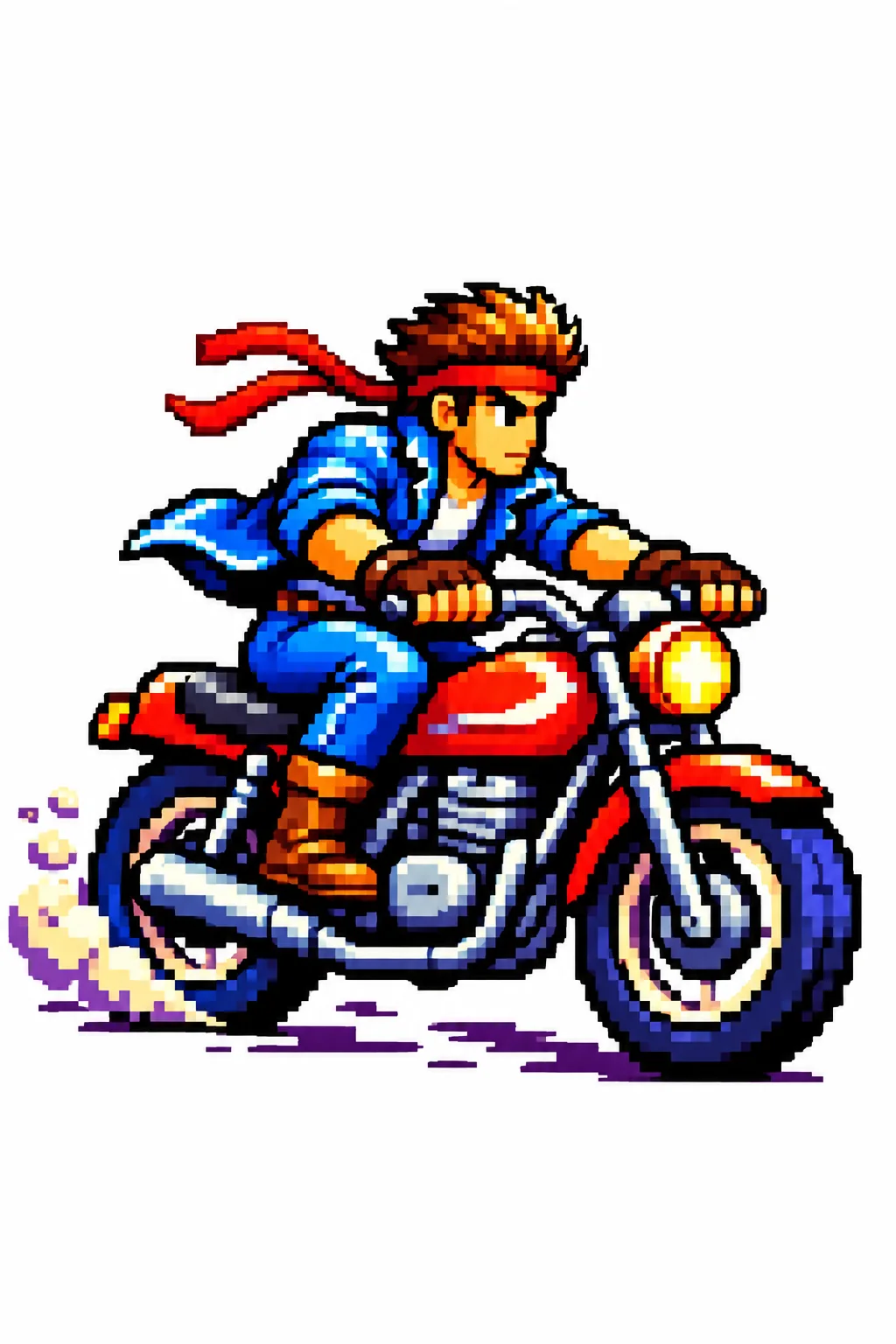
Directional Sprites has the same switch at step 4.3. With it enabled, each facing you render gets its own map. A sprite sheet’s map adds 0.5 credits to the animation or render cost. There is no added map charge for still images in Image Generator or stills in Directional Sprites.
Keep the sprite, map and frame data together
You can download the map on its own or use the combined sheet and JSON download to keep all three files together. The map follows the sprite sheet’s layout, down to individual pixels and frames. Use the same frame region for both textures in the engine so the light follows the animation.
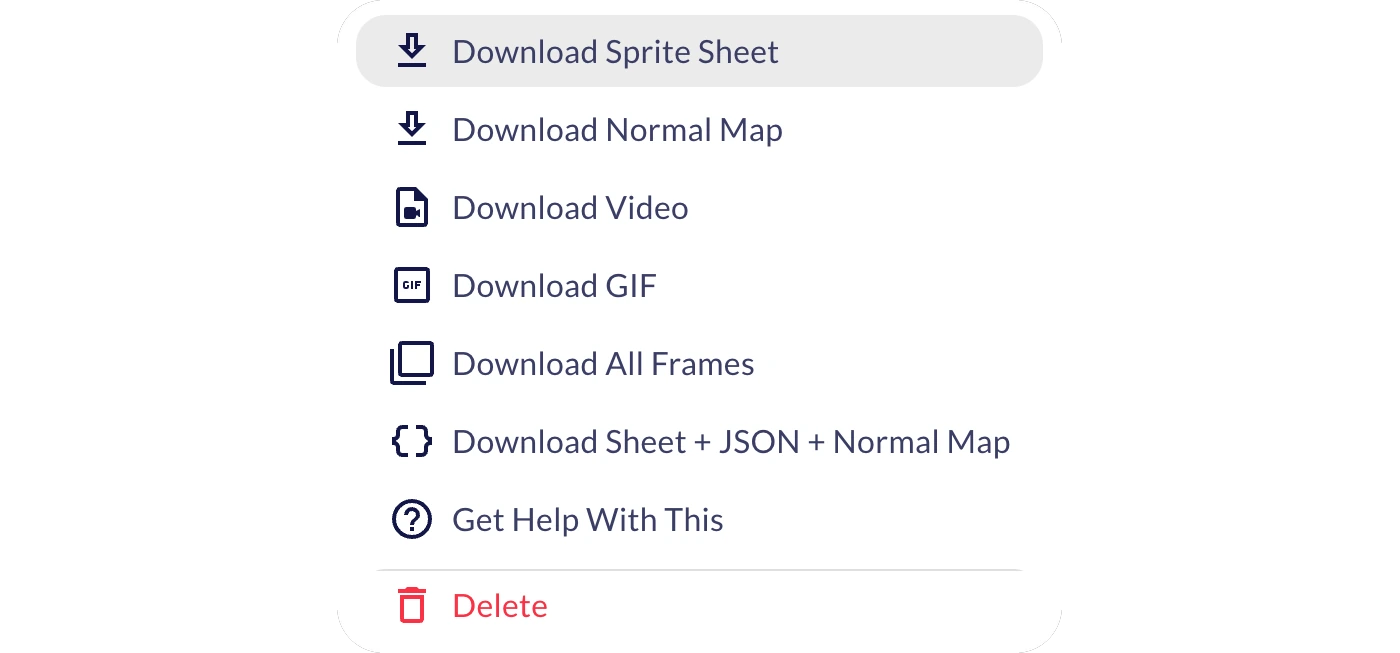
Ludo.ai exports normals in the OpenGL convention. Unity and Godot can use that channel orientation directly with their lighting setup. Godot’s 2D lighting guide shows how to supply the map through CanvasTexture. For Unreal, Ludo.ai recommends inverting green, which you can do with Flip Green Channel in the texture editor.
Request a map from the API or CLI
The generator documentation lists save_normals: true for supported sprite and image requests through the API or MCP. Read the resulting normal_map_url. In the CLI, the equivalent option is --save-normals. These options let a build script collect the color and normal textures from the same job. Ludo.ai includes developer access with its Pro and Studio plans.
See the Ludo.ai tool page or browse other steps in the 2D art and animation workflow.
Sources (5)
Written with AI from Ludo.ai’s release and official engine documentation. Editorial review follows the site’s automatic product update policy.