PRODUCT UPDATE / 3D assets · Texturing
Tripo adds a Remove Lighting toggle for 3D textures
Announced September 24, the toggle controls baked-in lighting in new textures. It is included in standard texture generation costs and leaves existing models unchanged.
For developers preparing image-generated assets for scene lighting.
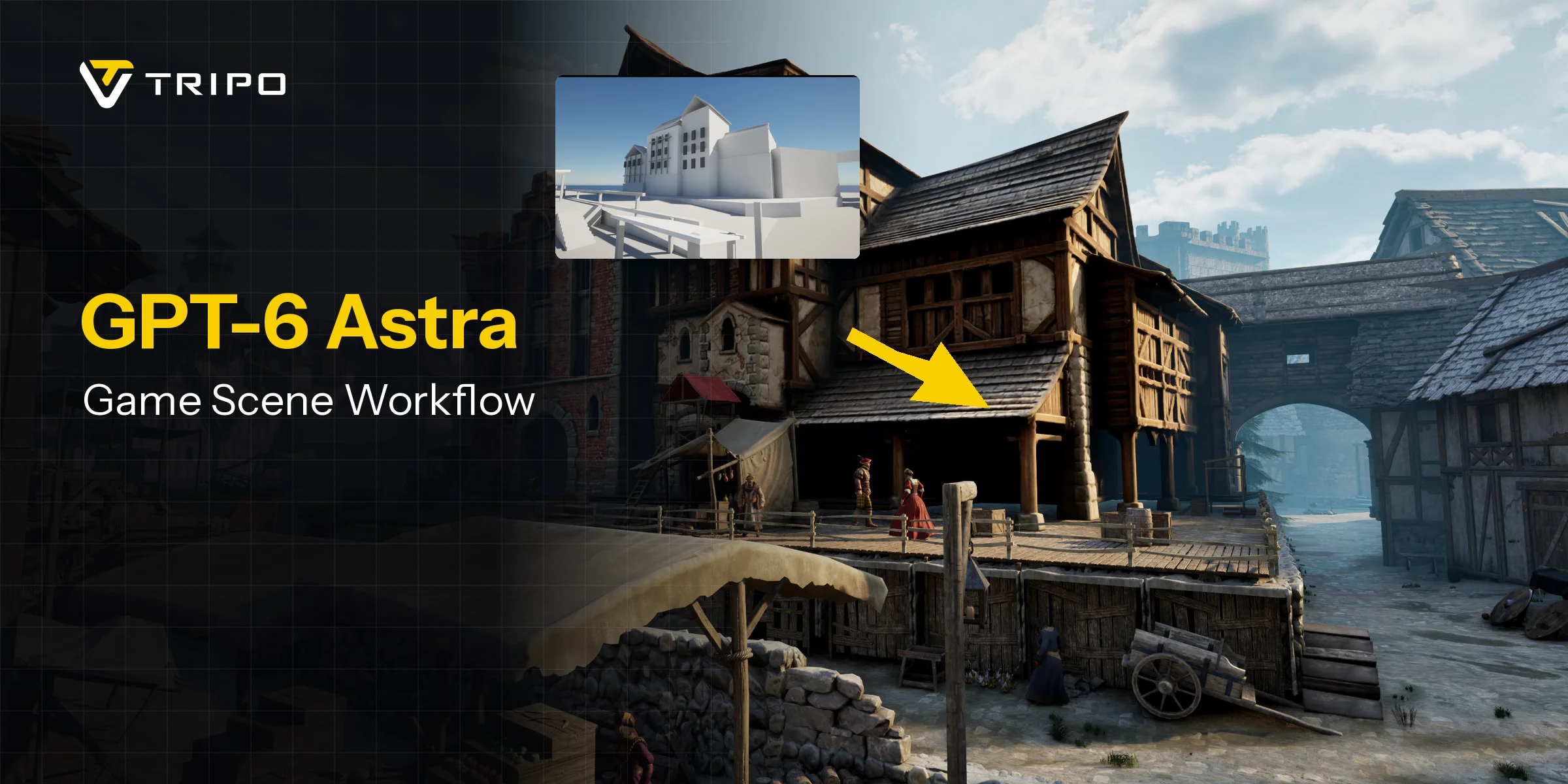
Tripo announced a Remove Lighting switch on September 24, giving asset creators a choice over how reference-image lighting carries into generated textures. It is relevant when preparing a model for a game scene with its own lights.
Baked shadows stay with the texture
Unity's texture documentation describes albedo as the material's base color and recommends keeping lighting and shadows out of it, since the engine calculates lighting from the scene. A dark patch painted into a character's cheek will remain in the texture even when a light moves to that side.
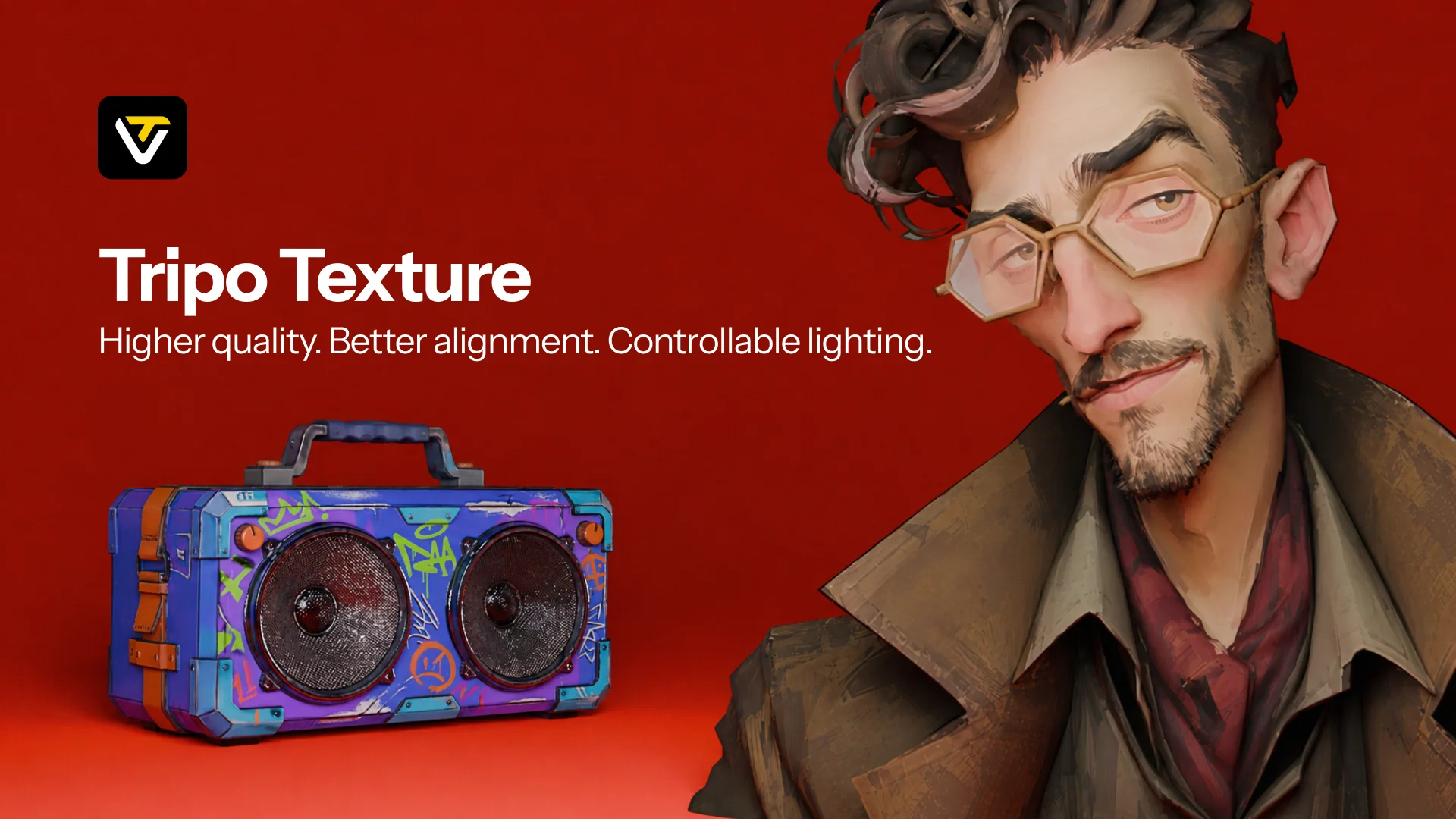
According to Tripo's texturing page, turning Remove Lighting on reduces reference lighting to produce a more neutral base color. Turning it off retains that lighting and style, which can suit an intentionally painted look.
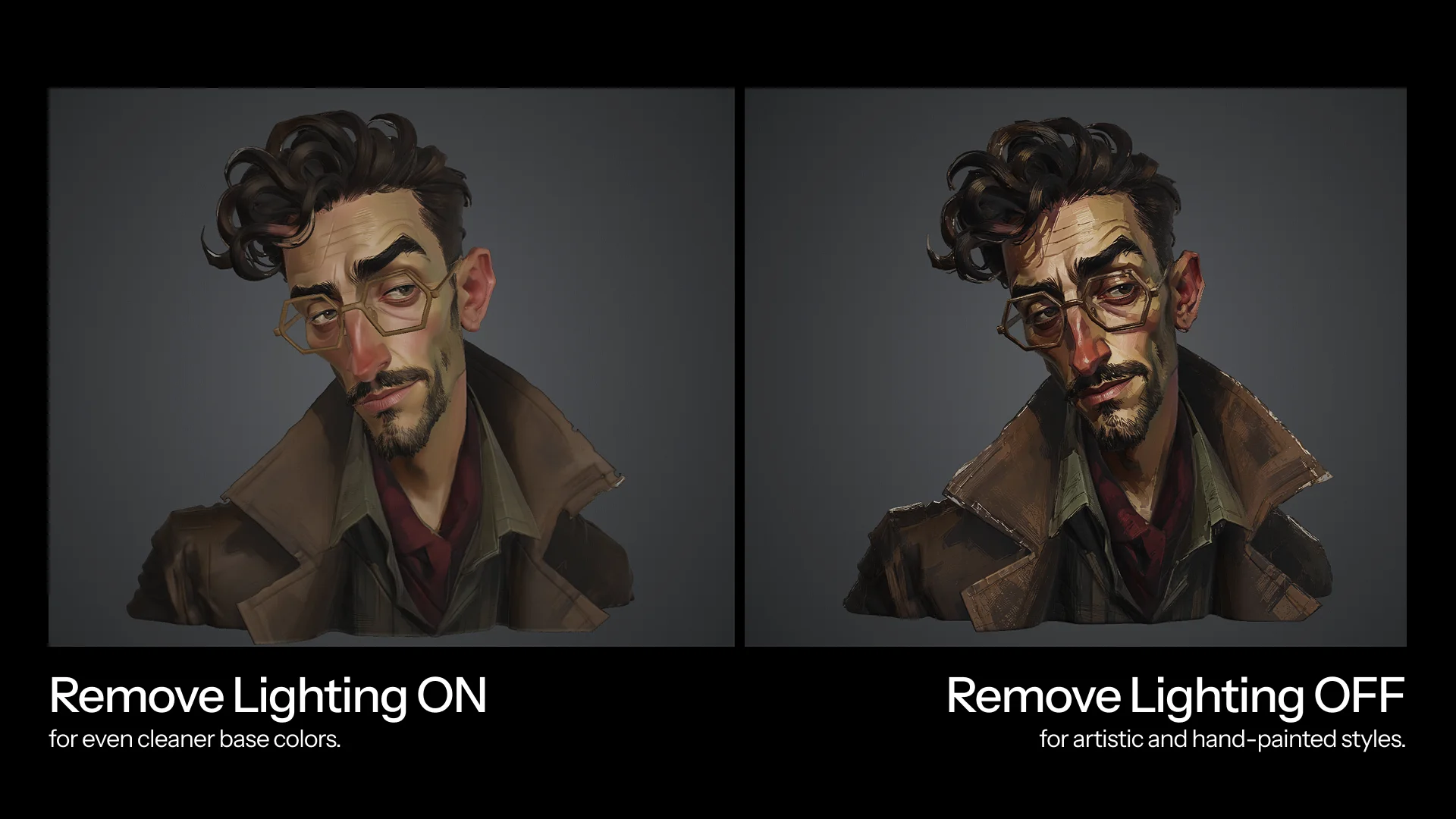
Available in HD Model and Texture settings
The switch sits in the texture settings for HD Model and the standalone Texture module. Smart Mesh enables lighting removal by default when adding a texture.
Tripo's FAQ says the option is included in standard texture generation costs and applies only to new generations; existing models stay unchanged. Generating textures still follows the normal charging rules.
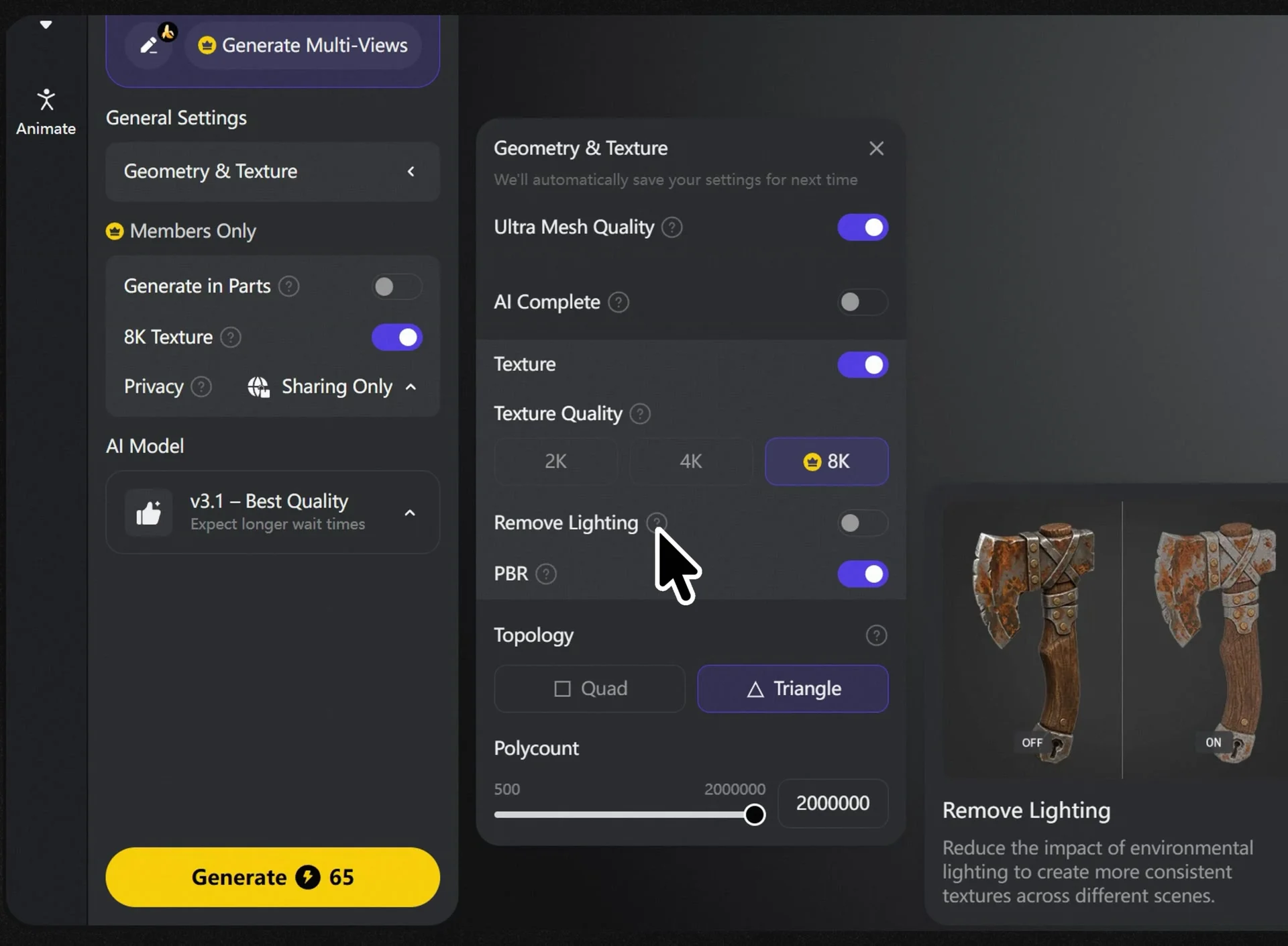
Before accepting a texture for a game, try the asset under two light directions in the target scene. Look for fixed dark patches and unwanted color casts, and check whether removing them also loses painted details you want to keep. Keep a copy of the original output for comparison.
Sources (4)
No sponsorship or affiliate links in this article.