TUTORIAL
Your AI-made game has a bug. How do you fix it without knowing code?
Three playable debugging exercises show how to describe a fault, limit an AI repair, check the result and recover a working version. Includes broken and fixed examples, six screenshots, templates and source.
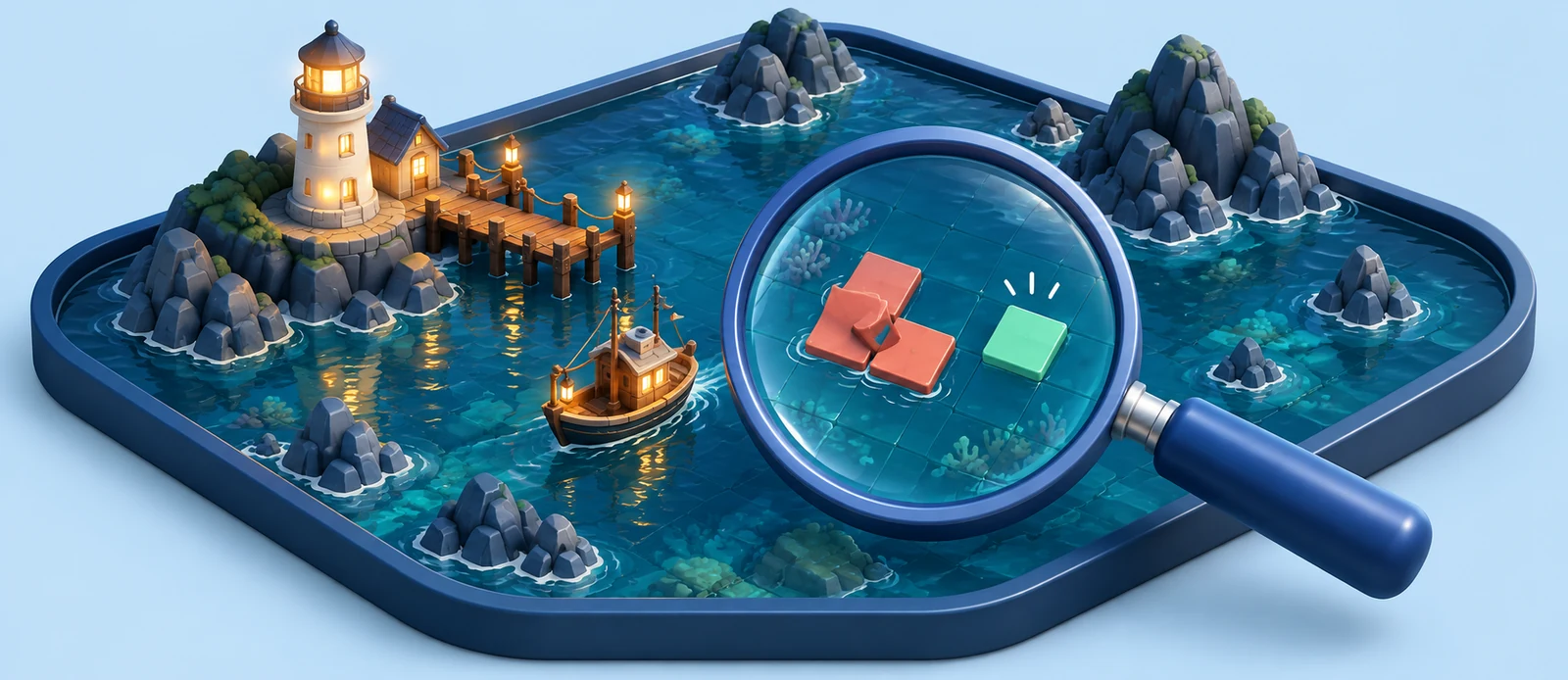
People with a running game prototype and no programming experience.
Small single-player browser games: input, game rules and round state, using deliberately introduced teaching faults.
A reproducible bug report, a checked repair, a recoverable version and a short regression record.
Your game runs. It has movement, scoring and an end screen. You ask AI to add a pause button, then notice that Restart resets the scene but keeps the previous round's timer. The assistant says it is fixed. You try again. The same thing happens.
You can contribute to debugging without being able to read the code. Start by turning the problem into a sequence someone else can repeat. Use that same sequence to check the repair. This guide works through three playable faults, with practical ways to provide evidence, limit changes and recover a working version.
If you do not have a running game yet, start with your first playable game. Otherwise, open the debugging exercises. Each fault was deliberately introduced for this lesson and has a fixed version for comparison. The original Lantern Courier remains unchanged.
Save a version you can actually open
Confirm which project the assistant is editing and which address your browser is showing. Two similar project folders can make a successful edit look ineffective if the preview is still running the other copy.
Save the current project. If you also have an earlier working version, keep both and label their condition, such as 09-26-before-pause-working and 09-26-after-pause-restart-bug. The faulty version is useful evidence too.
Choose a recovery method that fits your setup:
- A local project folder: Stop active file edits and copy or archive the code, assets and project configuration together. Ask the assistant for the launch instructions, then open the copy to confirm it runs. Keep the original folder intact.
- A web tool with version history: Find and preview a recent working version. Export a copy if the tool supports it. The current Rosebud tutorial describes using History to inspect and preview earlier versions before deciding how to continue.
- An existing Git project: Ask the assistant to inspect outstanding changes, identify the files belonging to the task and save a checkpoint. Check for unsaved assets and uncommitted work as well as the recorded commit.
If you need help, use this request:
I want to investigate a bug. Do not edit code yet.
Confirm the project folder, launch instructions and preview address.
List existing changes that have not been saved in a checkpoint.
Explain how to preserve this version and check that the saved copy starts.
Do not delete, overwrite or restore files without explaining the targets and effects first.
These exercises have no accounts, cloud saves or external database. A project that uses those services needs a separate data-backup plan; copying its code does not copy players' server-side data.
Turn “the game is broken” into a repeatable sequence
A useful report identifies the version, device, actions, expected result and actual result. “Restart is broken” can become:
Page: Debugging exercises, case 03, broken version.
Environment: Desktop Chrome, using a mouse.

Steps:
1. Reload the page and choose Set sail.
2. Wait until about 22 seconds remain, then choose Pause.
3. Choose Restart in the toolbar.

Expected: A new round starts at 30 seconds, with 0/5 lights, 3/3 hull and the boat at the dock.
Actual: Position and collection reset, but the timer continues from about 22 seconds.
Frequency: Fill in how many attempts you made and how often it occurred.
Recent change: Pause and resume were added.

Reproduce the problem and explain the cause before changing restart logic.
Preserve resume behavior, the map, movement speed, win conditions and art.
Describe observations without guessing the cause. “The boat stays at position 108, 270” is an observation. “The event system is broken” is a hypothesis the assistant still needs to investigate.
A screenshot captures positions, numbers and visible state. For a sequence-dependent fault, add a short recording from reload to failure, or write every step. Hide account information, keys and unrelated windows before sharing.
Some agents can operate the preview themselves. Current OpenAI browser documentation describes Codex in the desktop app interacting with pages, inspecting state and verifying results with the appropriate access permissions. Ask it to follow your reproduction steps. If your tool cannot open the game, run the steps yourself and report what you see.
Case 1: The mouse works, but touch does nothing
Open the broken touch exercise. On a touch device, start the round and hold on the first lantern toward the upper left. Desktop mouse input still works in this version, so a quick mouse check will miss the fault.
Below the game, the Live observations panel shows values from the running state. It cannot move the boat or set a result. In the broken version, the touch count increases while the boat stays at the dock and the lantern count remains zero.
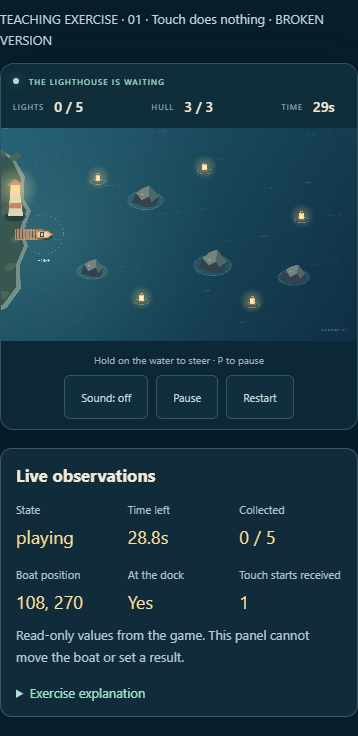
Focus the request on that difference:
On the same page, holding the mouse on the water moves the boat.
Holding a finger on the water does not.
The round has started and the timer is counting down.
The observation panel records a touch, but the boat position stays unchanged.

Check where touch input stops reaching movement logic.
Limit the repair to input handling. Preserve mouse, keyboard, movement speed and collisions.
Verify holding, dragging, releasing and touching again after a restart.
This exercise deliberately filters out touch input. The fixed version allows primary touch input to drive the boat. Browser Pointer Events can distinguish mouse, touch and pen; MDN documents that behavior. You can ask the assistant to inspect the implementation without learning every event name yourself.
Open the fixed touch exercise and hold on the same lantern. The boat should move and collect it. Releasing should stop movement. Then check the arrow keys to make sure the original controls still work.
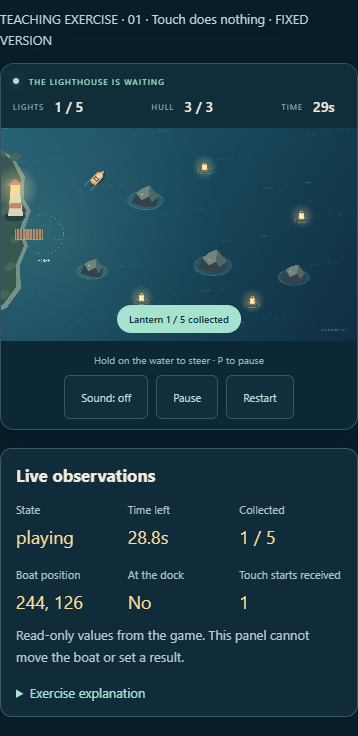
These two screenshots use browser touch emulation. Repeat the checks on your actual phone and target browser before sharing with phone users. A scrolling page, an overlay covering the canvas or incorrect coordinate conversion can produce similar symptoms in another project. Those causes need different repairs.
Case 2: All five lanterns are collected, but victory never appears
Open the broken victory exercise. Collect all five lights, then return to the circle beside the lighthouse. A useful route takes the upper-left, top and right lanterns first, then the lower-right and bottom ones, steering around the reefs on the way home.
When the result fails to appear, check three observations: Collected is 5/5, At the dock is Yes, and State remains playing. Also confirm that time remains and the hull is intact. This establishes whether the stated conditions have actually been met.
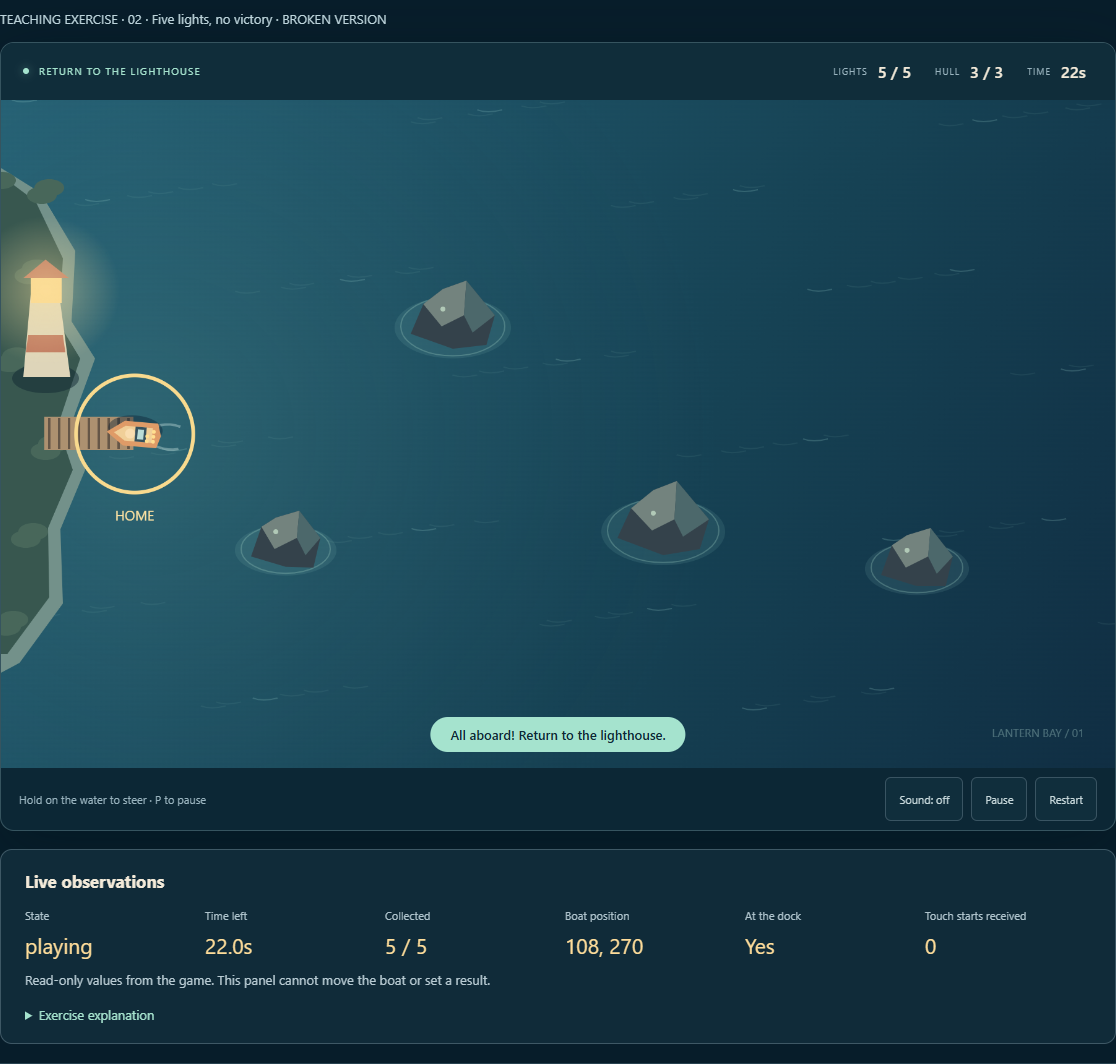
The report can now be short:
Collected is 5/5, At the dock is Yes, and time remains, but the round does not finish.
The rule is to collect five lights and return to the dock before time runs out.

Check whether settlement logic and the visible instructions use the same rule.
After the repair, check these three cases:
- Return with fewer than five lights: keep playing.
- Collect five but remain away from the dock: keep playing.
- Collect five and return: show victory.
Do not add a sixth light or remove the return requirement.
The deliberate fault requires six lights for victory, although the map and instructions provide five. The repair makes settlement follow the existing rules. A game can calculate the wrong outcome without producing a red error message.
Repeat the route in the fixed victory exercise. Collecting the final light should activate the return objective. Victory should appear only at the dock. Check the two cases that must not win as well; a repair that weakens the rule can make a victory screenshot look correct while changing the game.
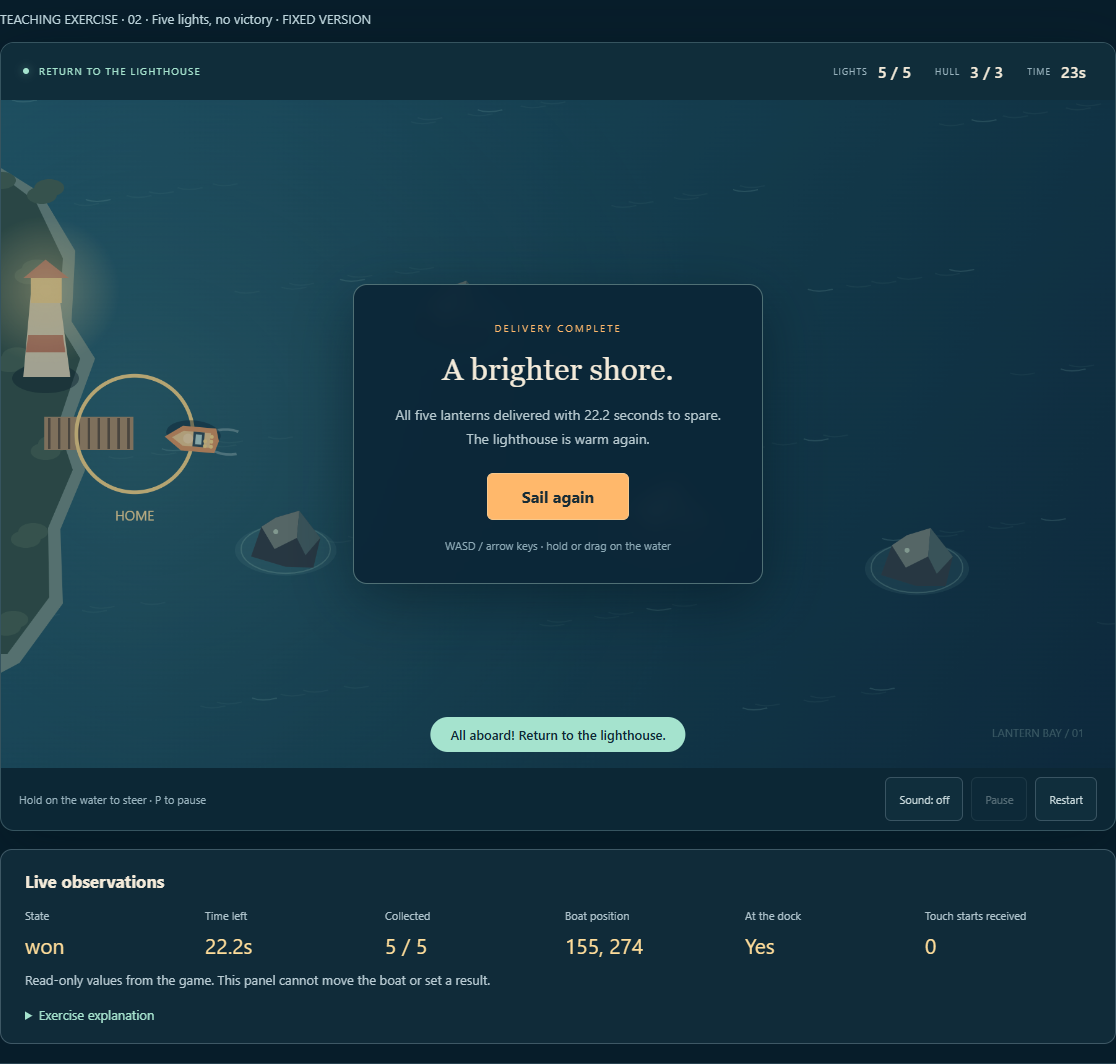
If your project has no observation panel, ask for a temporary display of the relevant values: collected items, target count, whether the player is at the finish, and game state. Give the labels plain names. Decide whether to keep the diagnostic display after debugging.
Case 3: Restart inherits the old countdown
Open the broken restart exercise. Start, wait until about 22 seconds remain, pause, and restart. This version carries the previous timer into the new round.
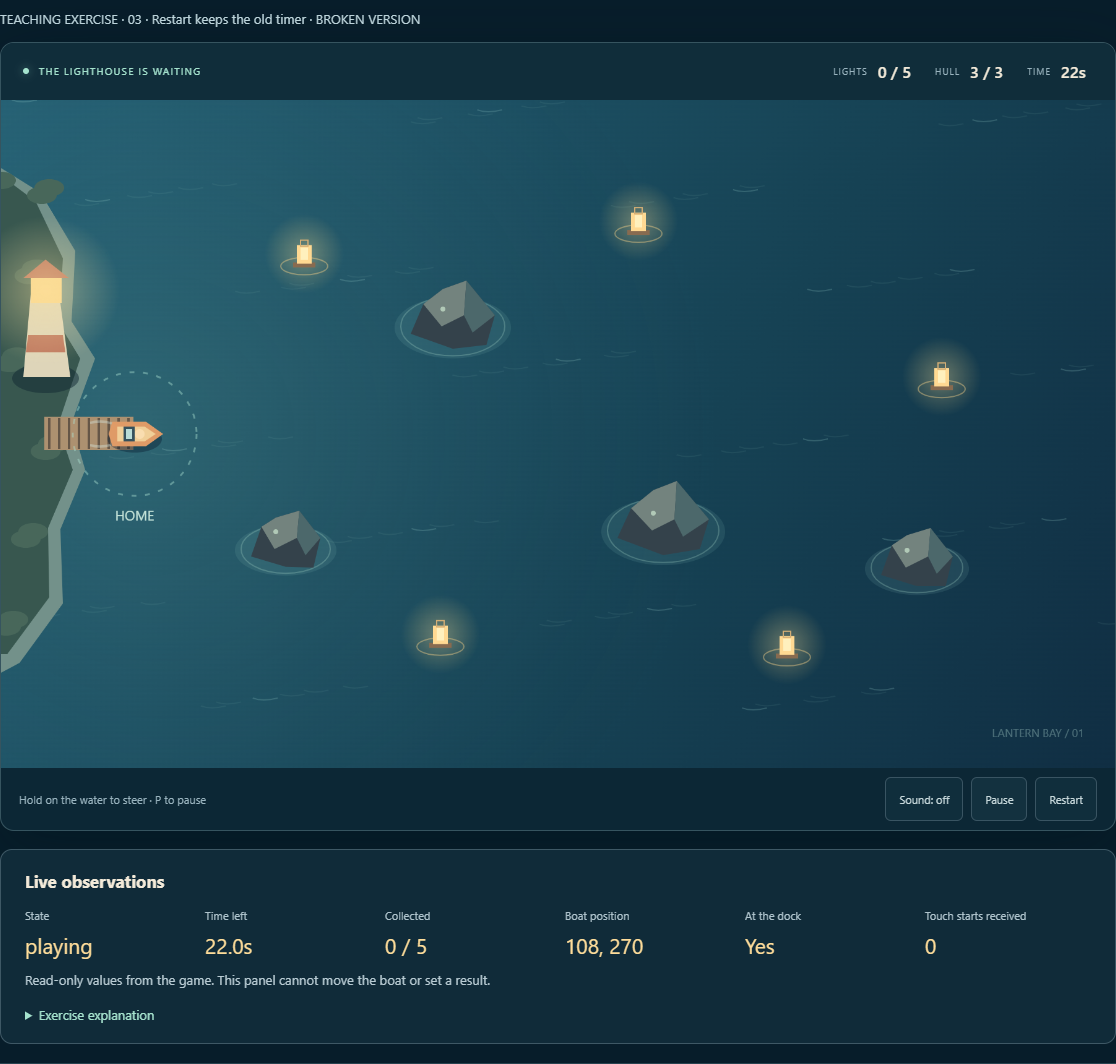
Resume and Restart have different contracts. Resume keeps the current time, collected lights and position. Restart initializes a new round. Ask the assistant to describe both behaviors before editing so that fixing one button does not change the other.
The fixed restart exercise initializes a new round at 30 seconds. Check restarting from pause, then restart from the timeout screen. Both entry points should produce a fresh round.
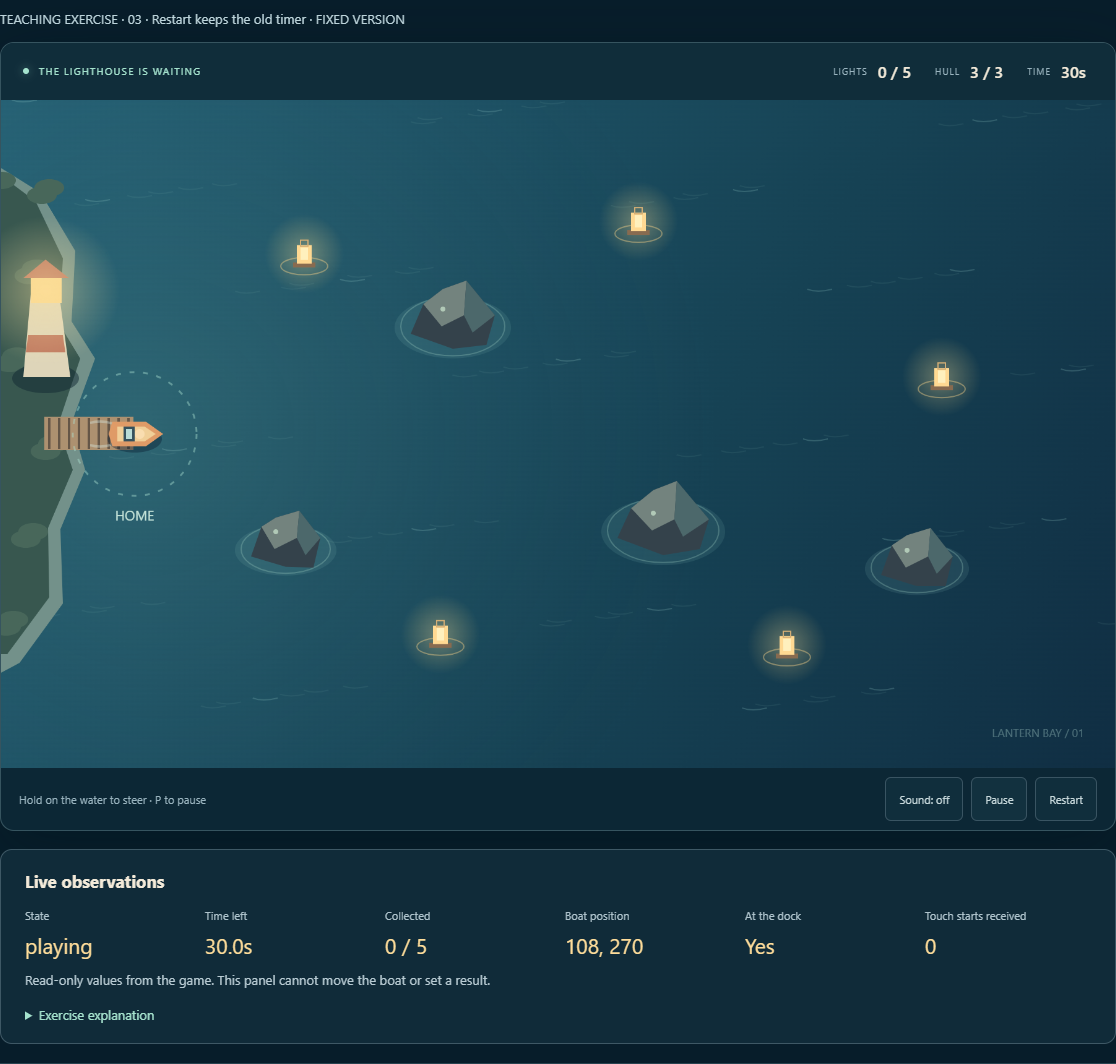
Ask the assistant to add an automated check: give a round less time, restart it, and verify 30 seconds remain. That protects a precise rule. Checking that the visible button invokes that rule, and that a phone tap reaches the button, still requires the running interface.
For a blank page or a crash, capture the error text
The three exercise faults are visible in gameplay and do not deliberately crash JavaScript. When a real project shows a blank page, fails to start or throws an error on a click, add logs to the report.
If the launch terminal already shows an error, copy the complete relevant message and the command you ran. A screenshot containing only “startup failed” loses useful context.
In desktop Chrome, open Console with Ctrl + Shift + J on Windows or Linux, or Command + Option + J on Mac. Keep it open, repeat the failing action, and copy the related error with its file location. If reproduction requires reloading, Preserve log keeps messages across page loads. These controls are documented in the Chrome Console reference.
You do not need to paste unfamiliar code into Console or disable browser security. The task is to obtain the error. Remove tokens, personal details and private addresses before sharing logs.
If no error text is available, say so and provide the actions and screenshots. “No error found” does not establish that the behavior passed its check.
After “fixed,” repeat the original actions yourself
Look at what was actually checked. A successful build, a passing rule test, a page that opens and a reproduced fault that no longer occurs establish different things. Ask for the performed action and observed outcome: “Restart from pause returned the timer to 30 seconds” is easy to verify.
Check the original reproduction and its neighboring behavior. After an input repair, try mouse and keyboard too. After a victory repair, test conditions that should not win. After a restart repair, confirm that Resume still keeps progress.
For a small prototype, reserve ten minutes after a change to walk through:
- Reload or relaunch, confirming the current version is open.
- Repeat every step of the original fault and record the actual result.
- Play the normal loop, including collection or scoring.
- Check victory, defeat and restarting from result screens.
- Check what Pause, Resume and Restart retain or clear.
- Repeat the affected interaction on the relevant device or screen size.
Ten minutes is a suggested slot for a small prototype, not a quality guarantee. Accounts, payments, saves and multiplayer need their own checks. Use the downloadable checklist to keep a record.
Stop adding patches when there is no new evidence
If the first edit does not fix the symptom, send back the same steps and the new result. Another edit should follow new evidence. If the assistant keeps adjusting the same area without explaining what it learned, ask it to stop:
The original reproduction still fails after this change.
Pause code edits. Summarize confirmed observations, attempted changes and explanations still possible.
Choose one check that could distinguish the remaining explanations.
Tell me exactly where to look and what to do.
Before undoing anything, list the files to restore and the changes that would be lost. Wait for confirmation.
If more previously working features break, preserve the current faulty version and a short note. Open a separate copy of the last working version and return to the original problem. Check for assets and features added since that checkpoint before restoring anything.
Change boundaries also appear in real development records. The author of Call the Cat: Galaxy describes working with AI on a Unity game without reading or writing code, and requiring file review so that only the current task's changes enter a commit. That post records a project-management rule; it does not report a bug-free game test.
Stop sending a new version to players if the issue affects payments, accounts or unrecoverable saves, or if the assistant cannot explain why a broad rewrite is needed. Your reproduction record will help an experienced developer take over.
Keep the repair with the working version
A short record is enough: the affected version, reproduction steps, files changed, checks repeated and where to look if the fault returns. Save it with the working checkpoint.
Take the bug report template, regression checklist, or complete exercise source. The source retains the deliberate faults and fixed branches for comparison. It does not replace your own project.
Once the repair is verified, decide what to add next. A prototype you can repeatedly open, change, check and recover gives you a practical foundation for improving the gameplay, adding art and sharing with friends.
Sources (5)
The three faults are deliberately introduced teaching cases. Screenshots show the running exercises; prompts are reusable editorial templates.